 Lodehost
What to copy and what to leave behind
A server folder holds a lot of things that are created again on the first start. You only need the parts that carry your world, your players and your choices.
| File or folder | What it holds | Copy it? |
|---|---|---|
world | The map, player inventories, advancements and statistics | Yes |
world_nether and world_the_end | The Nether and the End on Paper, Purpur and Spigot before 26.1 | Yes, if they exist |
plugins | Plugin files together with their settings and data | Yes |
mods and config | Mods and their settings on Fabric, Forge and NeoForge | Yes |
server.properties | Seed, game mode, difficulty, whitelist switch and the rest | Yes, except the port lines |
ops.json, whitelist.json, banned-players.json, banned-ips.json | Operators, whitelist and bans | Yes |
bukkit.yml, spigot.yml, purpur.yml and the config folder of Paper | Settings of the server software | Yes, when you keep the same software |
server-icon.png | The picture next to your server in the list | Yes |
logs, crash-reports, cache, libraries, versions | Old logs and files that are downloaded again | No |
| The server jar | The server software itself | No, the new server installs its own |
Since Minecraft 26.1 a world keeps the Nether and the End inside the world folder, under dimensions, and player data under players. Older worlds are laid out differently. Copy them exactly as they are: a newer server rearranges the folders itself on its first start.
Three things that have to match
The Minecraft version, or a newer one
A world can move up in version and never back down. Opened in an older release, it loses what the newer one added, or it refuses to load at all. The first lines the old server prints when it starts name its version, so read them before you shut it down, and set the same version or a newer one on the new server.
The server software
Plugins need Paper, Purpur or Spigot; mods need the loader they were built for. Keep the same kind of server for the move itself. If you want to go from Spigot to Paper or from Forge to NeoForge, do that as a separate step once the world runs on the new host.
The online-mode setting
Player data is saved per UUID. With online-mode=true that UUID comes from the player's Microsoft account; with online-mode=false it is calculated from the name. Change the setting during a move and every player arrives as a stranger: new spawn point, empty inventory, no claims. Copy the value from the old server.properties as it is.
Move the server step by step
Note the version and software of the old server
Check its console or panel for the Minecraft version and whether it runs Paper, Purpur, Fabric, Forge or NeoForge, and write both down.
Stop the old server and make a copy
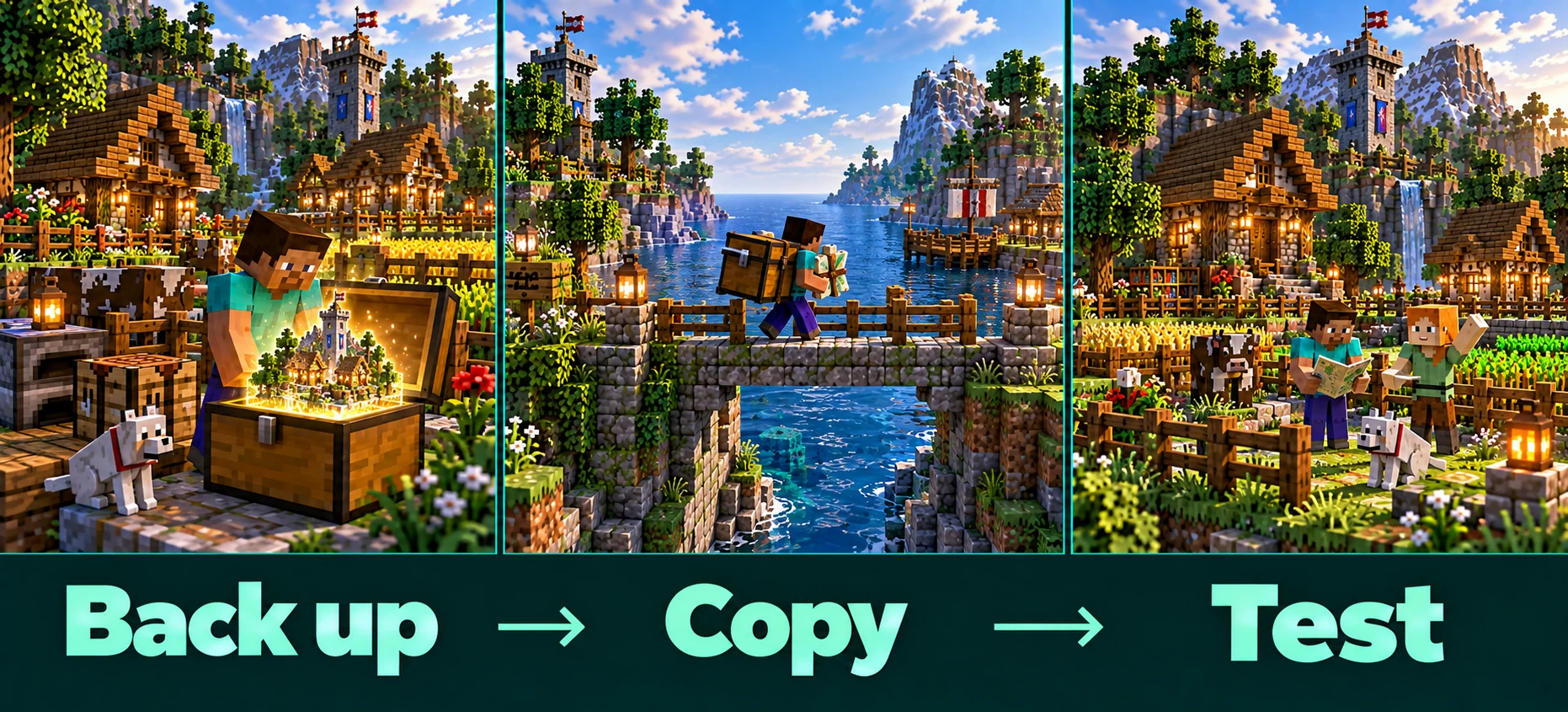
Stop it normally so the world is saved, then download a zip with the folders and files from the table above. A copy from a running server can catch a region file halfway through a save.
Set up the new server to match
On our panel, the Settings tab has the server software and the Minecraft version. Pick the same ones, start the server once so it creates its files, then stop it again.
Upload the zip while the new server is stopped
A running server writes its own world back to disk when it shuts down, right over the folder you just put in. In the Files tab, use Upload for small archives and From link for large ones.
Extract it and check the world name
Extract the zip in the server folder. The world folder has to carry the name in
level-nameinsideserver.properties, which isworldunless someone changed it.Start the server and read the console
Look for lines about plugins or mods that fail to load, then join, walk into a familiar base and open a chest before you invite everyone back.
Getting a big world across
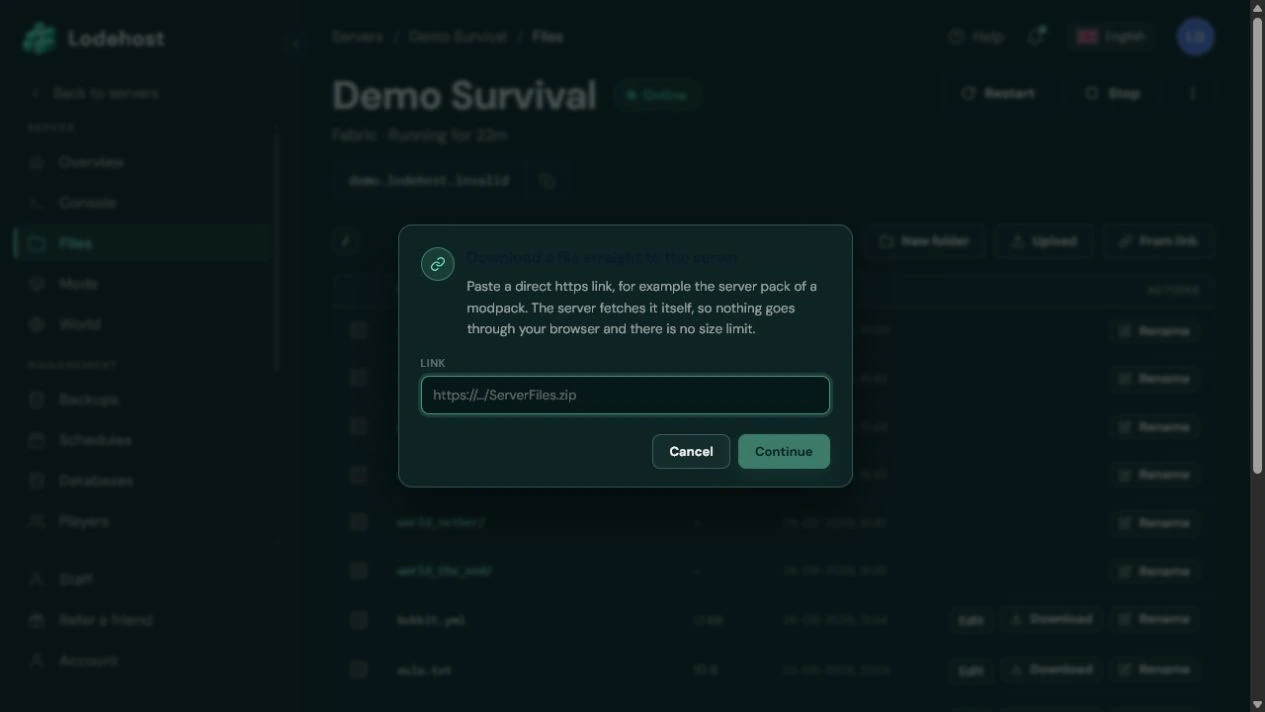
Uploading through a browser tab is fine for a few hundred megabytes. A world of several gigabytes is quicker when the new server fetches it itself: put the zip somewhere that gives a direct download link, paste that link under From link in the Files tab, and the download carries on in the background, even when you close the tab.
A link that opens a preview page instead of the file does not work, because the server would download that page. Test the link in a private browser window first: it should start the download straight away.
Plugin data that lives in a database
Some plugins keep their data in a MySQL database at the old host instead of in the plugins folder. Copying files does not bring that data along. Export it there first; LuckPerms, for example, has lp export and lp import for exactly this.
Coming from Realms, singleplayer or Bedrock
- Java Realms. In the Realm's settings, open Backups and download the latest one. You get a world folder you can zip and upload like any other.
- A singleplayer world. It sits in the
savesfolder of your Minecraft installation, one folder per world. Zip that folder, upload it and setlevel-nameto its name, or rename the folder toworld. - A Bedrock world. Bedrock stores worlds in a different format, so a Java server cannot open one directly. It has to be converted first, for example with the Chunker converter, and some blocks come out slightly different.
After the move
- Send players the new address. If they reached the old server through a domain of your own, point that domain at the new address with your domain provider.
- Keep the old server and its copy for a week before you cancel it. It is the cheapest insurance there is.
- Take a manual backup on the new server once everything checks out, if your plan has backup slots, and give it a name you will recognise later.
Written and checked by the Lodehost team, last reviewed on 13 September 2026.