 Lodehost
What the server list shows
| Part | Where it comes from |
|---|---|
| Name | Typed by the player when they add the server, so not something you set |
| Icon | server-icon.png in the main server folder |
| Description, one or two lines | motd in server.properties |
| Player count | The players online and max-players |
| Names when hovering over the count | The players online, unless hide-online-players is on |
Everything apart from the name is sent by the server each time a player's game refreshes the list, so a change reaches players without them doing anything.
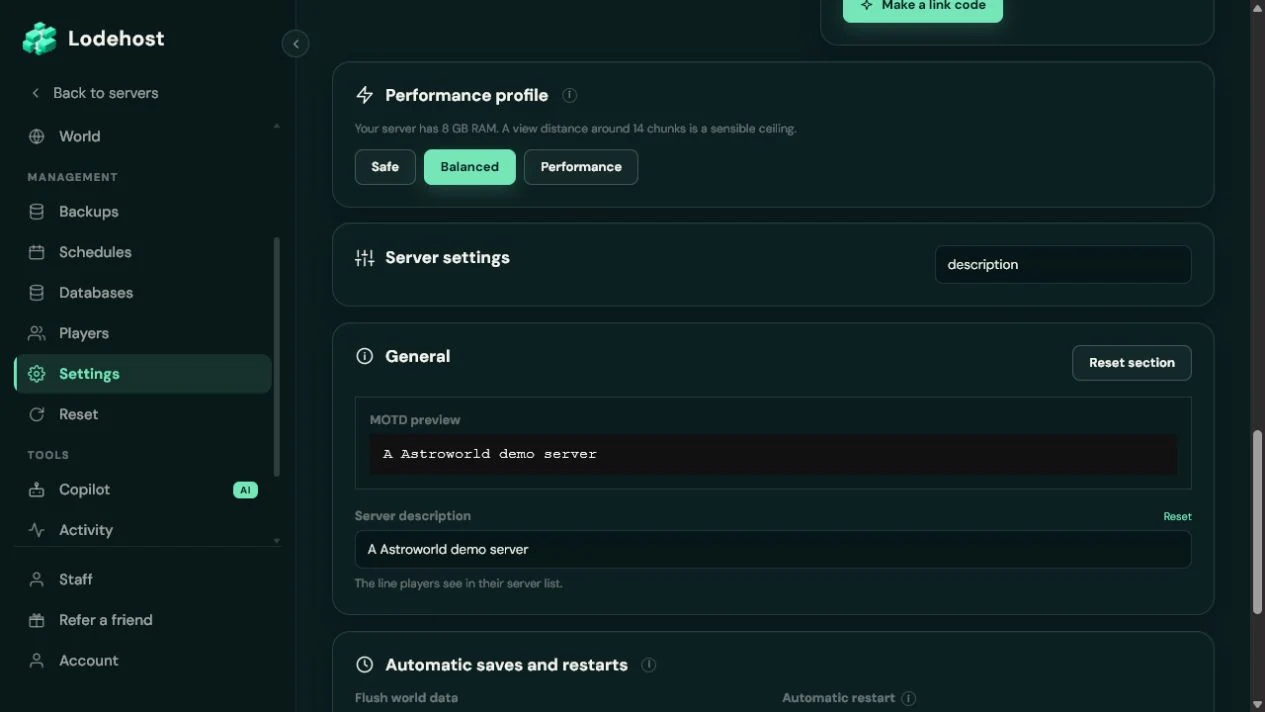
Setting the MOTD
On the Settings tab, the General group has a field called Server description. It takes up to 150 characters and is saved as motd in server.properties. Like every line in that file, it shows after the next restart.
Keep it short. The server list is narrow and cuts off text that does not fit, so whatever matters most belongs at the start.
Choosing the words is the harder half. Minecraft server description on astroworldmc.site shows how to write a two line MOTD that says what kind of server this is, next to 24 example descriptions sorted by game mode.
Colors and formatting
Colors come from codes: a section sign § followed by one character. Everything after a code takes on that color, up to the next code.
| Code | Color | Code | Color |
|---|---|---|---|
§0 | Black | §8 | Dark gray |
§1 | Dark blue | §9 | Blue |
§2 | Dark green | §a | Green |
§3 | Dark aqua | §b | Aqua |
§4 | Dark red | §c | Red |
§5 | Dark purple | §d | Light purple |
§6 | Gold | §e | Yellow |
§7 | Gray | §f | White |
| Code | Effect |
|---|---|
§l | Bold |
§o | Italic |
§n | Underlined |
§m | Struck through |
§k | Scrambled characters that keep changing |
§r | Back to plain text |
Color first, then style
A color code switches off bold, italic and the other styles. Write §6§lStonebrook, not §l§6Stonebrook, or the bold is gone before the first letter.
Codes written with & instead of § belong to plugins, which translate them into real codes. The game itself shows an & as an ordinary character.
A second line
\n starts a second line. The field on the Settings tab saves a backslash as a plain backslash, so write the line break in the file itself: open server.properties on the Files tab and edit the motd line.
server.properties
motd=§6§lStonebrook Survival§r\n§7Towns, trading and a new End every seasonWhen the § sign is hard to type, write \u00A7 in its place; the server reads it as the same character, and after a restart the file may show either form. If the description turns up with odd symbols around the codes, the file was saved in an encoding the server did not expect. Save it as UTF-8, or switch to \u00A7, and restart.
Hex colors, gradients and centered text
server.properties knows only the sixteen colors above. Hex colors, gradients, centered text or a description that changes on every refresh take a MOTD plugin on Paper or Purpur. Such a plugin has its own config file, and depending on the plugin the motd line is then ignored or kept as a fallback.
The server icon
- PNG, exactly 64 by 64 pixels. The game does not show an icon of any other size, and a JPEG renamed to .png is still a JPEG.
- Named `server-icon.png`, all lowercase, in the main server folder next to
server.properties. - Loaded at start. A new icon appears after a restart, and players see it the next time their list refreshes.
The Server icon card on the Settings tab takes care of all three. It accepts a PNG of 64 by 64 pixels up to 256 KB, checks that the file really is such a PNG, and saves it under the right name.
To make the picture, start from a larger square image and scale it down to 64 by 64 in an image editor. Fine detail and thin lettering vanish at that size, so a bold shape or one or two letters on a plain background reads best.
The player count and the list of names
- Max players in the General group sets the number after the slash. Operators whose entry in
ops.jsonhasbypassesPlayerLimitset to true still get in when the server is full. - Hide the player list in the Access group keeps the names of online players out of the list, while the count stays visible.
- Answer server-list pings in the Advanced group decides whether the server shows up in lists at all. Off makes it look unreachable, even though players who know the address can still join.
Written and checked by the Lodehost team, last reviewed on 14 September 2026.