 Lodehost
Four pieces that have to fit
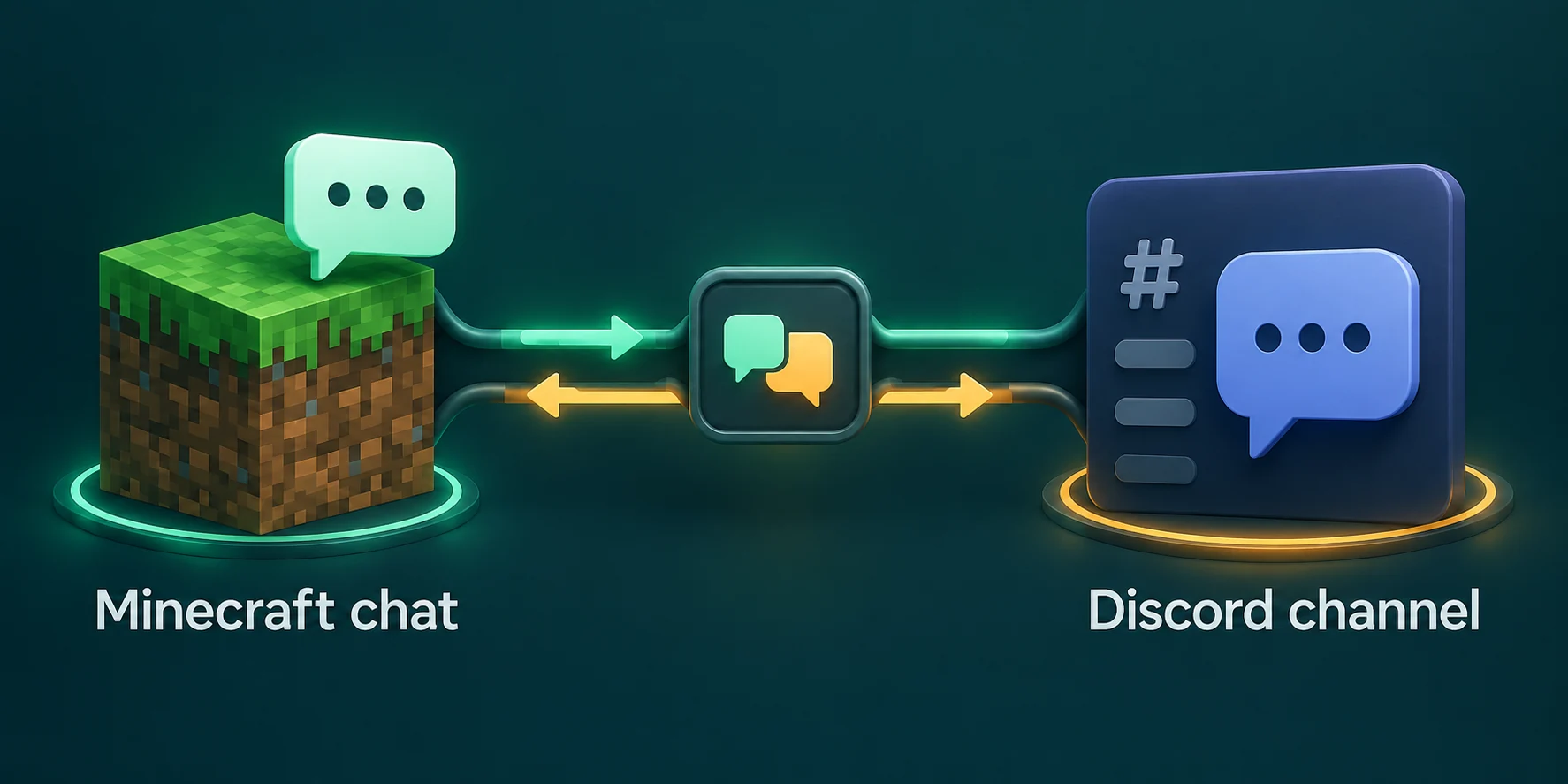
DiscordSRV is a plugin, so the server has to run Paper or Purpur (how those two differ). It signs in to Discord as a bot that you create, and it needs to be told which Discord channel receives which messages.
| Piece | Where you get it | Where it ends up |
|---|---|---|
| The plugin | Plugin catalog on the Plugins tab | The plugins folder of the server |
| A bot application | Discord Developer Portal | Invited into your Discord server |
| The bot token | The Bot page of that application | BotToken in plugins/DiscordSRV/config.yml |
| A channel ID | The Discord app, with Developer Mode on | The Channels line of the same file |
The current release, DiscordSRV 1.30.5 from April 2026, supports Java Edition 26.2, and the catalog on our Plugins tab lists it for that version.
This guide assumes the Discord server itself already exists. If you still have to decide which channels it gets and which roles members and staff receive, Minecraft Discord server setup on astroworldmc.site plans that part, including where the chat bridge channel fits.
Create the bot in the Developer Portal
Make an application
In the Discord Developer Portal, choose New Application and name it after your server. That name is what people see next to relayed messages.
Keep it to yourself
On the Installation page, leave only Guild Install ticked and set Install Link to None. On the Bot page, make sure Public Bot is switched off, so nobody else can add the bot to their own server.
Switch on two intents
Still on the Bot page, under Privileged Gateway Intents, turn on SERVER MEMBERS INTENT and MESSAGE CONTENT INTENT. PRESENCE INTENT only matters if you later set
EnablePresenceInformationto true.Invite it
Take the Application ID from General Information and build an invite with the
botandapplications.commandsscopes. Pick your Discord server and authorize it.Give it a role
Create a role for the bot in your Discord server settings and assign it. Administrator is the short route; the table below is the narrower set.
The intents are not optional. Without Message Content, Discord delivers the messages in your channel with their text left empty, so nothing readable could reach the game. When the bot asks for an intent that is switched off, Discord closes the connection with code 4014 and DiscordSRV stays disabled.
| Scope | Permissions for the bot role |
|---|---|
| Server wide | Manage Roles, Manage Channels, Ban Members, Manage Nicknames, Manage Webhooks |
| In the channels it uses | View Channel, Send Messages, Manage Messages, Embed Links, Mention @everyone, @here and All Roles, Add Reactions, Read Message History, Move Members, Mute Members, Manage Permissions |
Install the plugin and give it the token
On the Plugins tab, type DiscordSRV into Search plugins and choose Install. The catalog is matched to your server type and version, and the panel confirms the file as SHA-512 verified with a reminder to restart. Restart once now, before you have a token. DiscordSRV writes its folder and config, fails to sign in, and tells you why:
Console
No bot token has been set in the config; a bot token is required to connect to Discord.At this stage that line is good news: the config exists. Back on the Bot page in the portal, Reset Token generates the token and shows it for copying. On the Files tab, open plugins, then DiscordSRV, choose Edit next to config.yml, paste the token between the quotes and press Save.
plugins/DiscordSRV/config.yml
BotToken: "PASTE_THE_BOT_TOKEN_HERE"A changed token needs a full restart; discord reload does not pick it up. Whoever holds that string controls the bot: they can read every channel it sees, post as it and use every permission on its role, Ban Members included.
- Never paste it into a channel, a screenshot or a help request. Sharing
config.yml? Swap the token for a placeholder first. - Move it out of config.yml if others edit that file. DiscordSRV also reads a file named
.tokeninplugins/DiscordSRV, and while that file exists theBotTokenline is ignored. Anyone with the Files permission can still open it, so grant that permission sparingly. - Use one bot per server. One token on two servers gets the bot rate limited, and DiscordSRV warns that Discord treats this as abuse.
- Debug reports mask it.
discord debugreplaces anything shaped like a token before the report is uploaded.
If the token leaks
Go back to the Bot page and press Reset Token again. The leaked token stops working, so put the new one in the config and restart the server before anything else.
Channel IDs and the Channels line
Turn on Developer Mode
In the Discord app, open User Settings with the cog at the bottom left, go to Advanced and switch on Developer Mode.
Copy the ID
Right-click the text channel meant for chat. The menu now has an entry that reads Copy Channel ID or Copy ID, and what it copies is a long number.
Put it in the config
Replace the row of zeros in
Channelswith that number and keep the quotation marks around it.
plugins/DiscordSRV/config.yml
Channels: {"global": "CHAT_CHANNEL_ID"}

# or send joins, leaves and deaths somewhere quieter:
Channels: {"global": "CHAT_CHANNEL_ID", "join": "EVENTS_CHANNEL_ID", "leave": "EVENTS_CHANNEL_ID", "deaths": "EVENTS_CHANNEL_ID"}
The left half of each pair is a name DiscordSRV uses internally, not the name of your Discord channel. Player chat on a Paper or Purpur server without a chat plugin is global. Everything DiscordSRV posts goes to the first channel in the list, unless the list has a pair for that kind of message:
| Name on the left | What it carries |
|---|---|
global | Player chat, and replies from Discord |
status | Server start and stop messages |
join and leave | Players arriving and logging off |
deaths | Death messages |
awards | Advancements |
broadcasts | Messages sent with discord broadcast |
link | Account linking |
A chat plugin brings its own channel names, and those take the place of global. With TownyChat the usual name is general.
Changes to Channels apply with discord reload in the Console tab, typed without a slash.
A console channel, and why to lock it
DiscordConsoleChannelId takes the ID of a second channel. DiscordSRV copies the server console into it in batches, every 5 seconds by default, and runs whatever is typed there as a console command. It does not look at who typed it. Every member who can post in that channel gets the reach of the server console.
The only brake is a short blocklist: ?, op, deop and execute. That leaves stop, ban, whitelist off and every plugin command wide open, so one careless channel permission hands out more than any ban or kick could undo.
Leave the ID empty unless you need it
An empty DiscordConsoleChannelId switches the console channel off, which is the right setting for a plain chat bridge. Never give it the ID of the chat channel; DiscordSRV warns in the console about exactly that mistake.
- Make the channel private. In Discord, deny View Channel to @everyone on that channel and allow it for yourself and the bot's role only.
- Turn the blocklist into an allowlist. With
DiscordConsoleChannelBlacklistActsAsWhitelist: true, the list names the only commands that run, for examplelist,sayandtps. - Keep the record. Each command is written to a
Console-<date>.logfile with the sender's Discord name and user ID, and by default a command that cannot be logged does not run.
Typed in the chat channel
!c say hello from DiscordThe chat channel has a side entrance too. A message with that prefix runs as a console command for members holding a role named Owner or Developer, capitals ignored, and those roles may run anything. If your Discord uses those names for other people, set DiscordChatChannelConsoleCommandEnabled: false.
Linking Minecraft and Discord accounts
Linking records which Discord member belongs to which player. Chat works without it, but role sync, nickname sync and ban sync all build on it.
Get a code in game
The player types
/discord link. The server replies with a four-digit code and the name of the bot.Send the code to the bot
In Discord, the player opens a direct message to the bot and sends only those four digits. A wrong code gets
I don't know of such a code, try again.Check the result
/discord linkedshows which account is attached, and/discord unlinktakes the link away.
All players may link by default, while discord reload is kept for operators. For stricter rules, DiscordChatChannelRequireLinkedAccount: true only lets Discord messages into the game from members who linked, and Require linked account to play in linking.yml keeps unlinked players off the server. That second one is off by default, and players on the vanilla whitelist skip it while Whitelisted players bypass check stays true; the whitelist guide explains that list.
Restart and test both directions
Restart from the Console tab
Press Restart and watch the output for DiscordSRV errors. When there are none, the bot shows as online in your member list, playing Minecraft.
Game to Discord
Say something in game chat and look for it in the chat channel.
Discord to game
Type a line in the chat channel. It appears in game chat and, by default, in the console too, handy when nobody is online to check.
Ask for the player list
Send
playerlistin the chat channel. The bot answers with who is online and deletes both your request and its answer after 10 seconds.
When messages do not arrive
Scroll back to what DiscordSRV printed while the server started. Its startup lines name the cause of most failed setups:
| What you see | Likely cause | Fix |
|---|---|---|
The bot token is invalid, or DiscordSRV is disabled: your bot token is invalid. when you use a discord command | A typo, a stray space, or a token that has been reset since | Reset the token, paste the new one, restart |
An invalid length bot token (32) | The client secret was copied instead of the bot token | Copy the token from the Bot page |
missing one or more of the following intents, or DiscordSRV is disabled: your DiscordSRV bot is lacking required intents. when you use a discord command | One of the two intents is off | Switch both on under Privileged Gateway Intents, then restart |
| Game chat reaches Discord, Discord never reaches the game | The bot role cannot read that channel, or linked accounts are required | Allow View Channel and Read Message History there, or link the account |
| No errors, and nothing arrives anywhere | The number in Channels is not the ID of that text channel, or the file changed without a reload | Copy the ID from the channel itself, then run discord reload |
| Posts from webhooks never show in game | DiscordChatChannelBlockWebhooks is true by default | Set it to false if you want them relayed |
| A warning about rate limiting | The same token runs on more than one server | Give each server its own application |
Still stuck? Run discord debug in the console. It uploads a report of the setup and hands you a link, which is what the plugin's own helpers will ask for.
On a Fabric server
A Fabric server cannot load plugins, so the Plugins tab asks you to switch to Paper or Purpur. If the server has to stay on Fabric for its mods (why that choice matters), Simple Discord Link is a server-side mod with a July 2026 release for Java Edition 26.2. It needs CraterLib, which needs Fabric API; the Mods tab only lists mods matching your loader and version, and installs required dependencies along with them.
The Discord side stays the same: a bot of its own, all Privileged Gateway Intents switched on, a token and a channel ID. The first start writes config/simple-discord-link/simple-discord-link.toml. The token goes in botToken under [botConfig] and the chat channel in chatChannelID, and on the next start the mod encrypts the token so it no longer sits in the file as plain text.
Written and checked by the Lodehost team, last reviewed on 14 September 2026.