 Lodehost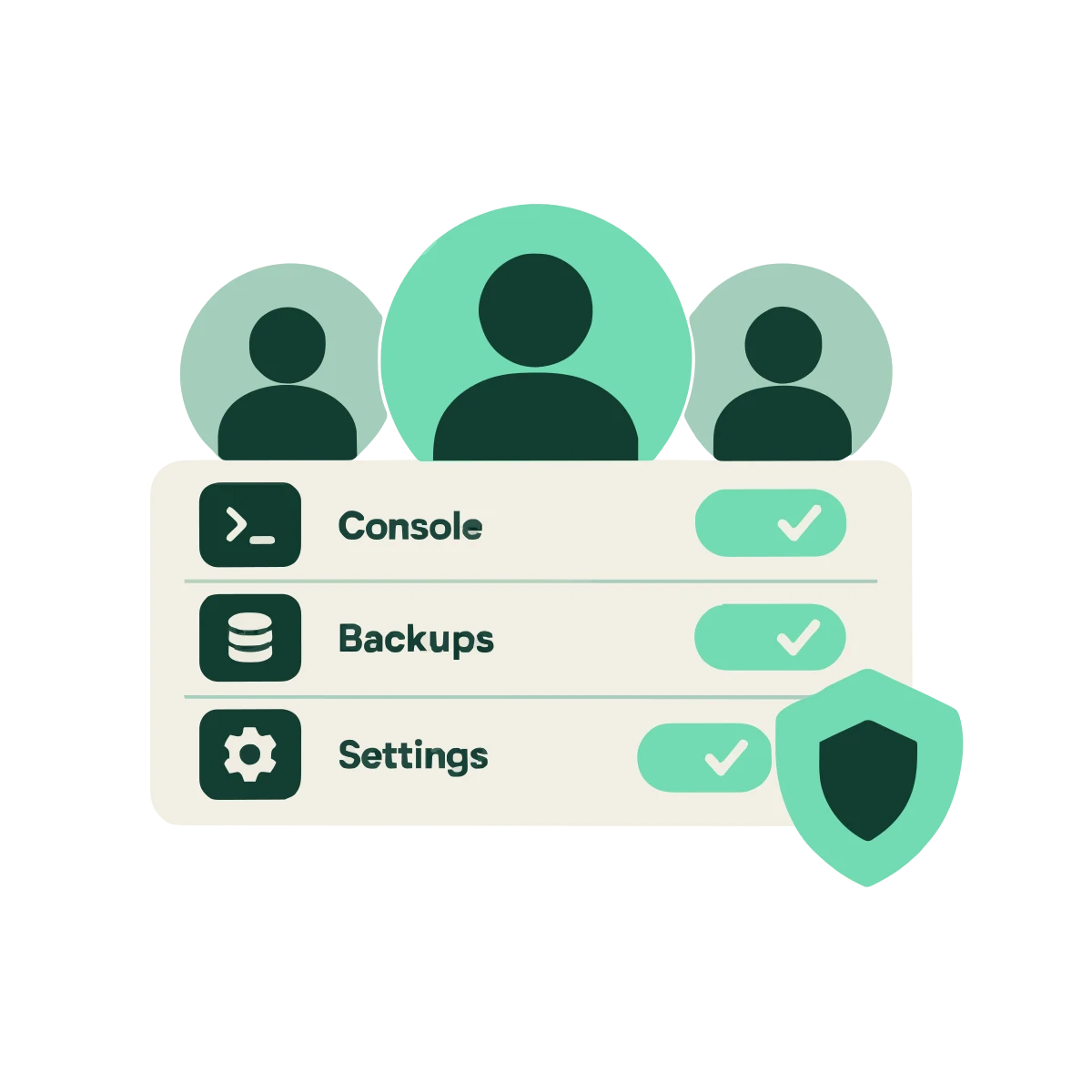
How to give someone access to your server
Open the Staff tab
It is on your own server in the panel. Only the owner of the server sees this tab.
Enter their email address
They do not need an account yet. The invitation is stored against the email address and attaches itself to their account the first time they sign in with it.
Pick a role or tick rights one by one
Start from Co-admin, Moderator, Builder or Viewer, and add or remove single rights on top of that.
Send the invitation
They sign in with their own email and password or their Google account and see only the tabs you gave them. Nobody shares a login.
The rights you can give
Every right matches a tab in the panel, and a staff member only sees the tabs they have a right for. The Overview stays visible to everyone because it only shows information.
| Right | What the person can do |
|---|---|
| Console | See the live output and send commands |
| Power | Start, stop and restart the server |
| Files | Browse, edit and upload files |
| Delete files | Delete files and folders |
| Plugins | Install and remove plugins |
| Mods | Install and remove server mods |
| Settings | Change server settings and startup options |
| World | Reset the world, the most destructive right |
| Backups | Create, download and restore backups |
| Players | Manage operators, the whitelist and bans |
| Activity | See the history of what happened and who did it |
Power is separate from Console, and Delete files is separate from Files, on purpose: somebody can fix a config without being able to empty a folder, and read the console without being able to switch the server off.
Four roles to start from
| Role | Rights it ticks | Good for |
|---|---|---|
| Co-admin | Every right | A partner who runs the server with you, still without managing staff |
| Moderator | Console, Players, Activity | Day to day moderation: kicks, bans, whitelist |
| Builder | Console, Files, Backups, Activity | Somebody who builds and saves their work |
| Viewer | Activity | Look, do not touch |
A role is only a starting point. After picking one you can tick or untick any single right for that person.
What only the owner can do
Two things can never be given to anyone, not even to a co-admin with every right:
- Managing staff. An account that could invite people could also give itself more rights or bring in an accomplice. So inviting, changing rights and removing staff stay with the owner.
- Billing. Your plan, invoices and payment methods live in your own account dashboard, not in the server panel, so no staff member ever sees or changes them.
Removing a right works immediately, both for the tab and for the action behind it. A staff member who had Files a minute ago cannot finish an upload after you untick it.
Panel rights are not in game ranks
Staff access decides what somebody can do in the panel. What a player may do inside the game, such as flying, using WorldEdit or banning with a command, is decided by operator levels and a permissions plugin. A moderator often needs both: the Players right in the panel and a moderator rank in game.
| Where | Controlled by | Read more |
|---|---|---|
| The web panel | Staff rights on this page | This page |
| Commands in game | Operator level 1 to 4 | Whitelist and operator levels |
| Ranks and per command permissions | A permissions plugin such as LuckPerms | The plugin installer |
| Kicks, bans and mutes | Console commands and a moderation plugin | Ban, kick and mute players |
Who does which job comes before any of these settings. Minecraft server staff roles on astroworldmc.site describes the usual team from owner down to helper and how large it should get as the server grows, and Minecraft staff application gives you 30 questions for picking the people you invite here.
Keeping a staff team safe
- Give the smallest set of rights that does the job. Most moderators never need Files or World.
- Keep World and Delete files for people you would trust with the whole server.
- Remove people who left the team the day they leave, not when you remember.
- Ask staff to turn on two step login on their own account, because their account is now a way into your server.
- Check the Activity tab after a problem: every start, stop, file change and backup shows who did it.
If griefing already happened, stopping griefing and undoing it and a restore from your nightly backups get the world back.
Written and checked against the panel by the Lodehost team, last reviewed on 17 September 2026.